Guide · For new Pro members
From first lead to first sale
This guide shows you how to use FreshLeads in four steps. The four steps follow the app: Filters, Contacts, Chats and Sales. Pick an example business below, and each step shows you what to do for it. Each part has a button that opens the app in a new tab.
Who uses FreshLeads?
Any business that sells to new businesses can use FreshLeads. Select an example below. The examples in this guide then change to match it.
Rosa owns a deli in Austin, Texas. The deli makes office lunches and food for events.
- Sells to
- New offices, coworking spaces and event venues near Austin.
- Gets from a reply
- a tasting lunch at their office, then a weekly team lunch order
A new dental clinic with a team of 12. It opened in East Austin last month.
Austin, TX Registered 3 days ago A new lead that FreshLeads can find for this businessFilters
A filter tells FreshLeads who your buyer is. Each day, FreshLeads checks every new business against your filters. You keep the best matches.
1.1Make a filter that finds your buyers
A filter tells FreshLeads who your buyer is. The AI reads each new business and gives it a match score from 0 to 100.
- Open Filters and click + New filter.
- Give the filter a name, for example “New offices in Austin”.
- In Who, write your buyer in plain words. Say what they sell, who they serve, and what to leave out.
- Set Where to the places that you sell to, for example Austin, TX.
- Set How to Email if you want only leads with an email address.
- Click Save draft. Then click Apply to start the search.
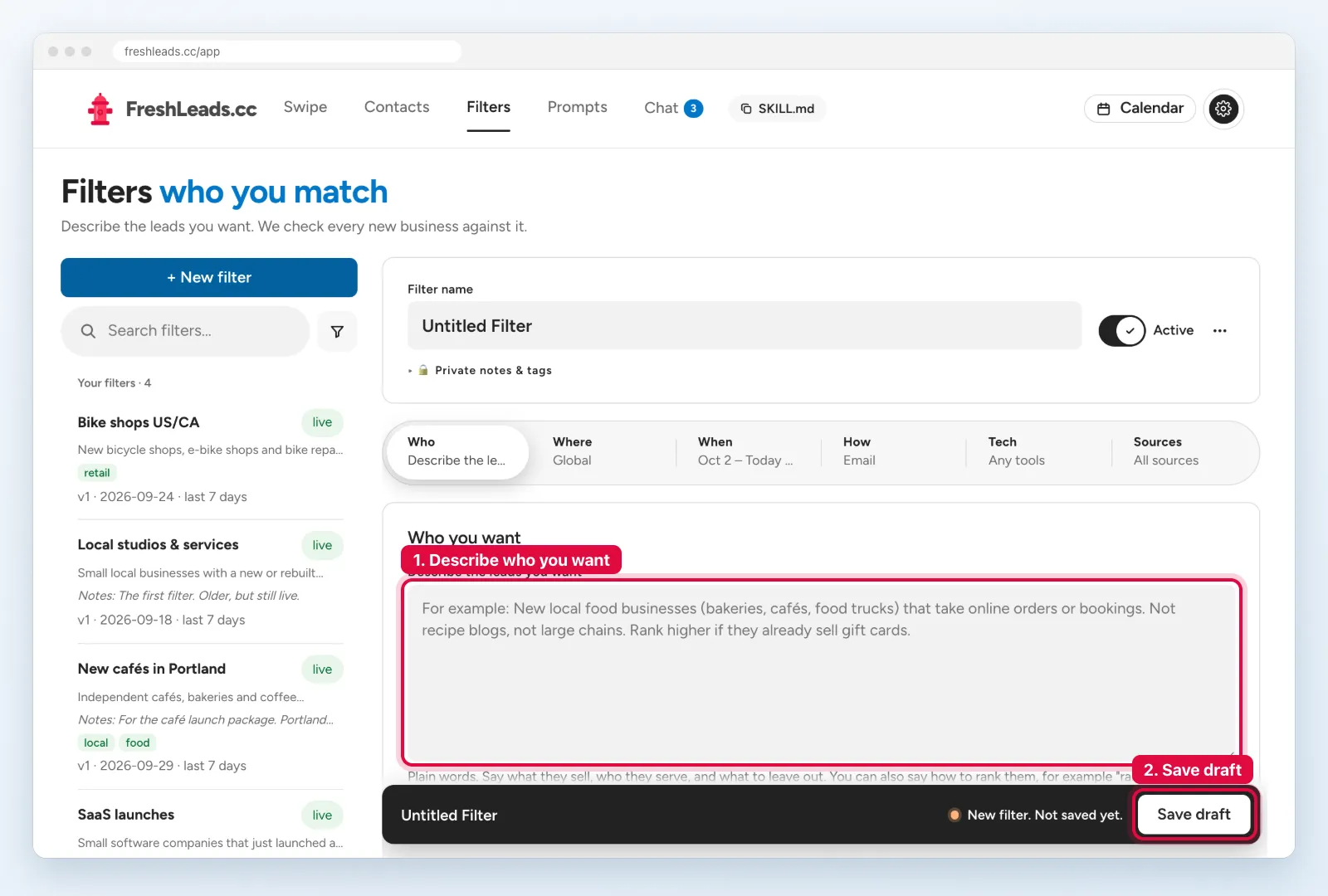
Write one filter for each type of buyer. Short and clear descriptions give better matches than long lists of words.
1.2Keep the best matches
New matches come to you as cards. You decide fast which businesses are worth an email.
- Open Swipe. Each card shows the business, its match score, and its contacts.
- Read the short summary and the score.
- Click Keep (or press
→) for a good lead. - Click Skip (or press
←) for a bad lead. Skipped leads stay in Contacts.
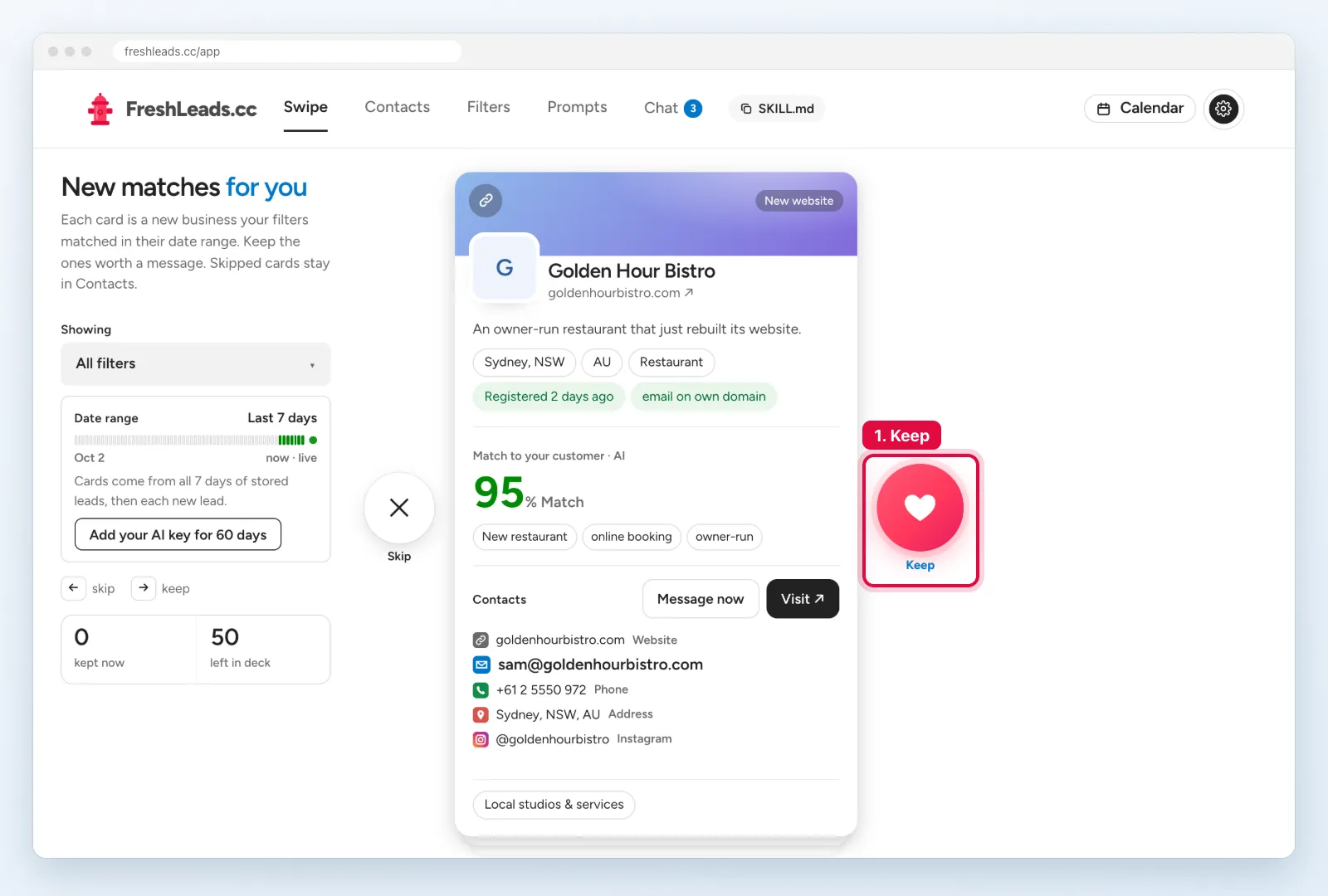
On a phone, swipe the card to the right to keep it, or to the left to skip it.
Contacts
Contacts is your list of all leads. Tags put leads into groups. In step 3, you send emails to a full group by its tag.
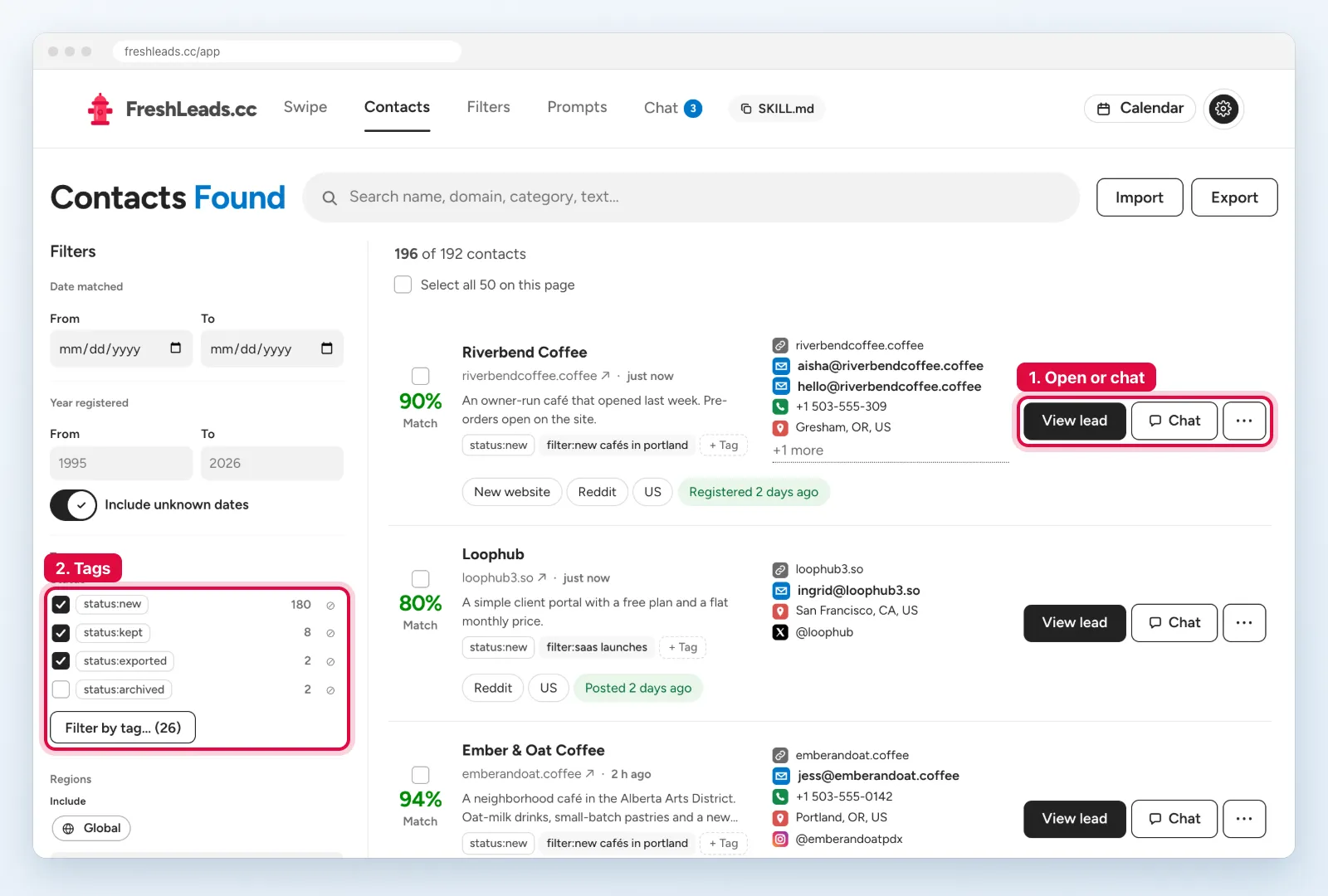
- Open Contacts.
- Use the filters on the left to find a group, for example a city, a source, or a minimum AI score.
- Click + Tag on a contact and type a tag, for example austin_offices.
- To tag many contacts, select their boxes. Then click Tag… on the bar that opens.
- Click View lead to see all the details of one business.
- In the filters on the left, set Regions to Austin, TX.
- Set Min AI score to 70.
- Tick Select all at the top of the list.
- Click Tag… and type austin_offices.
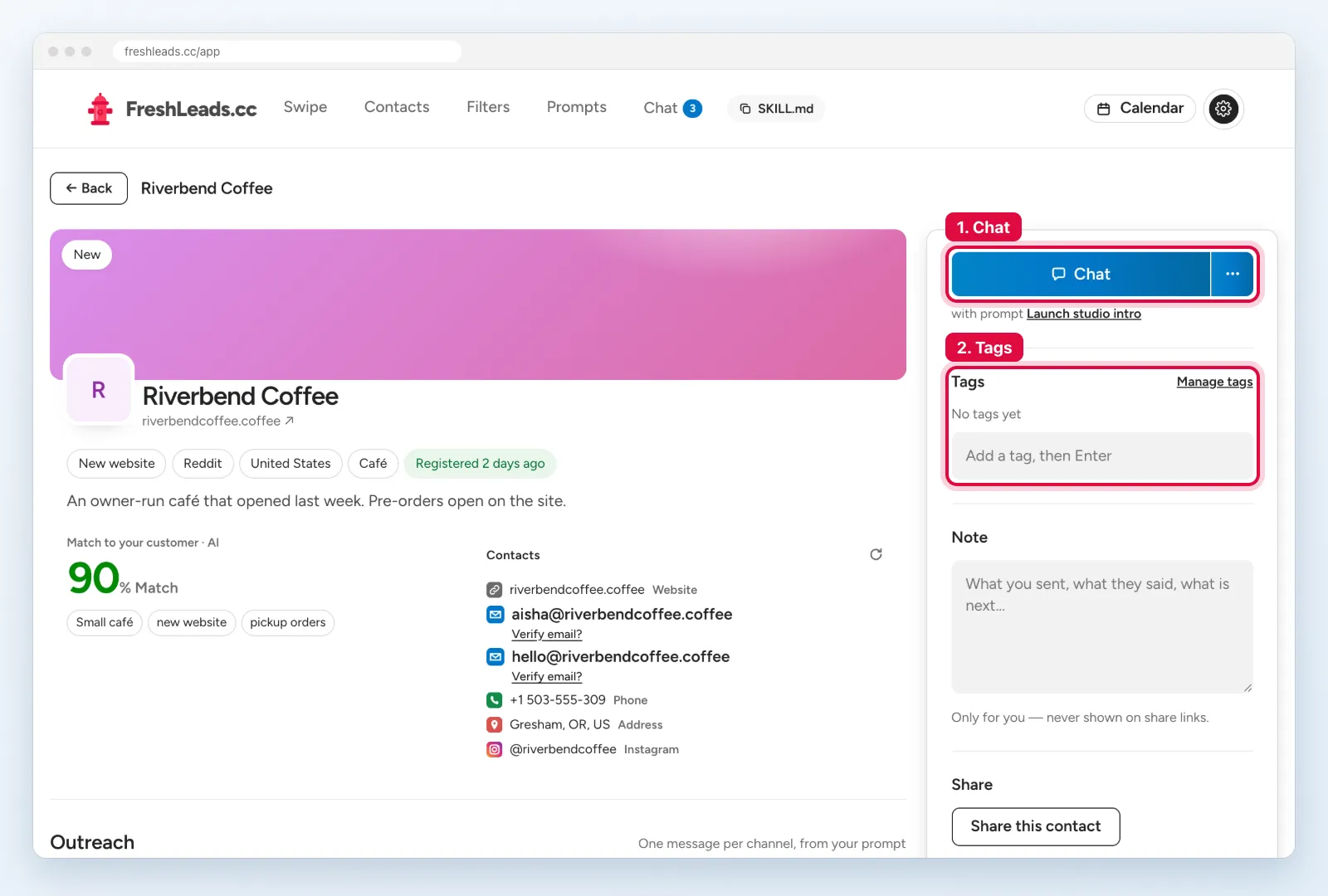
Before you email a lead, click Verify email? on the lead page. This check tells you if the mailbox exists. Emails to bad addresses hurt your sender.
Chats
Chat is where you write to your leads. Connect the address that sends your emails. Then the AI writes a different email for each lead. Test it on a few leads, then send to a full group on a schedule.
3.1Connect your sender
A sender is the email address that your emails come from. A new domain needs some days before it can send a lot of email. So start this setup early, on the same day that you make your filter.
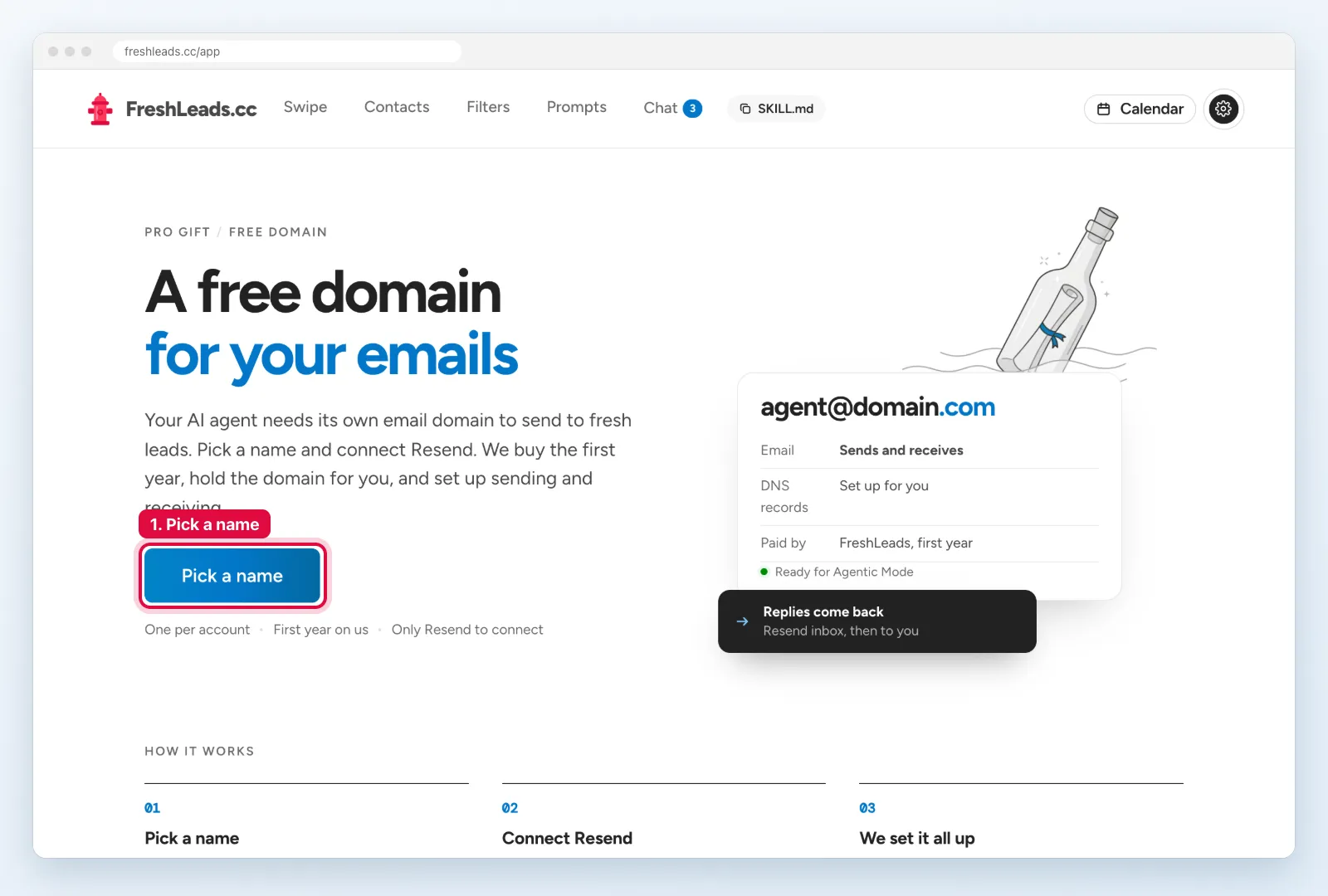
Your Pro plan has a free domain for the first year. We buy it, hold it, and add all the email records for you. You only connect a free Resend account.
- Open the free domain page.
- Click Pick a name. Type a short name that is near to your business name.
- Make a free account on Resend. Copy your Resend API key into the page.
- Type a sender name and address, for example
Sam <hello@yourname.com>. - Wait. The setup continues when you close the page. Your sender shows on the Calendar when it is ready.
3.2Write your prompt
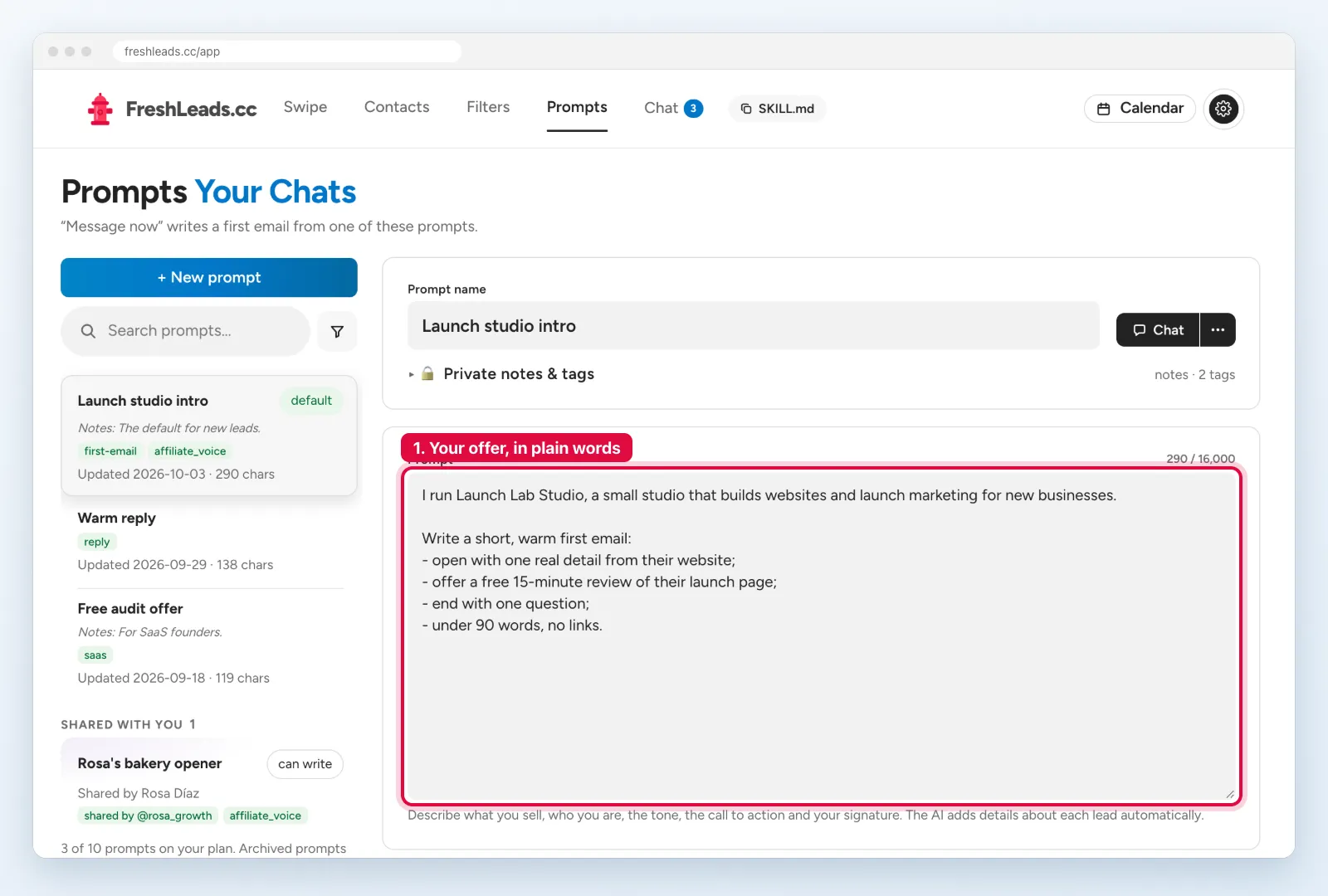
A prompt tells the AI how to write your emails. Write it one time. The AI then writes a different email for each lead, with facts from that lead’s website.
- Open Prompts and click + New prompt.
- Say who you are and what you sell.
- Say what the email must do: one real detail about the lead, one small offer, one question.
- Add your name and signature.
- Click Chat to test the prompt before you use it.
3.3Write your first email with the AI
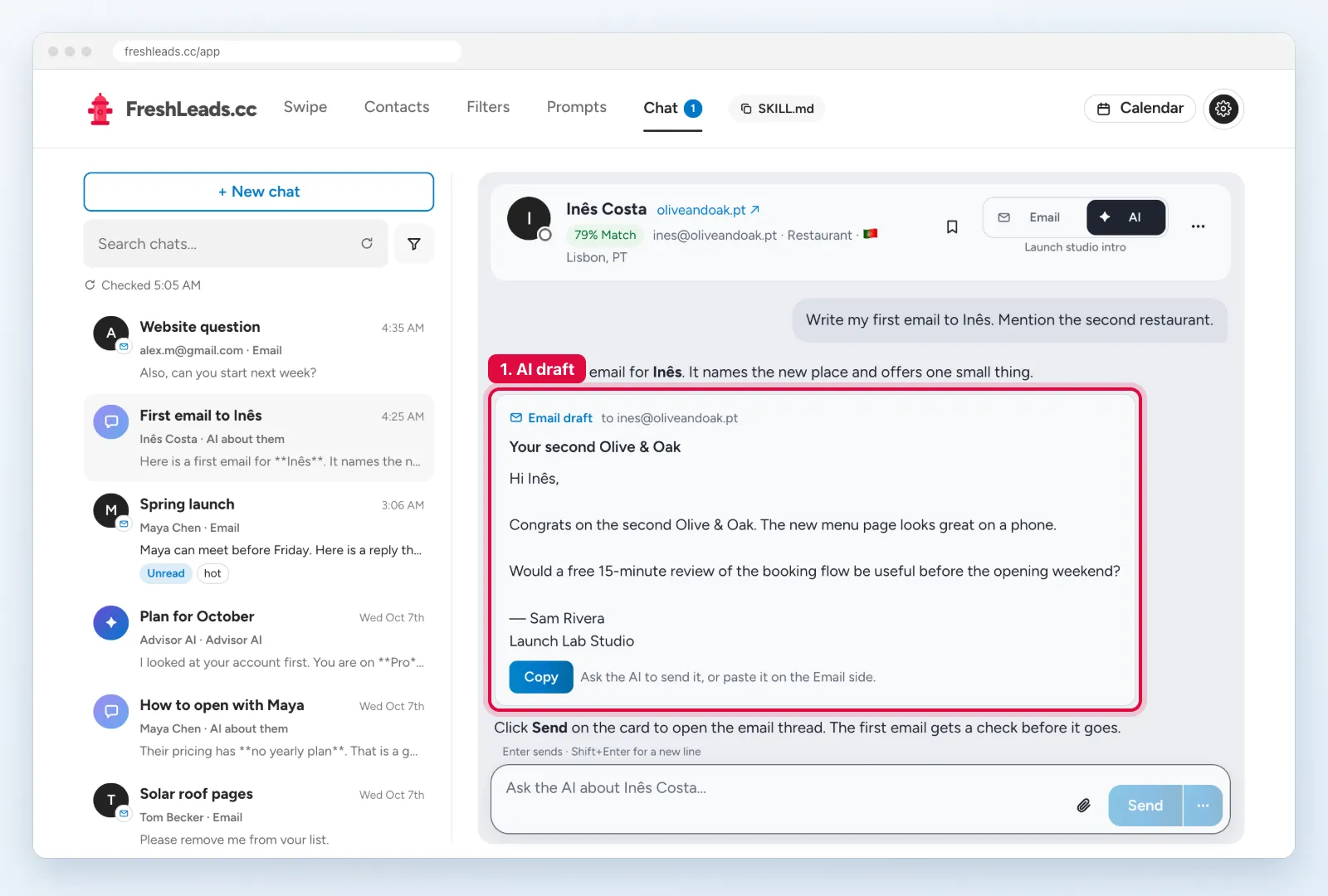
Send the first emails one by one. Then you can see how the AI writes, and you can make your prompt better.
- Open a lead and click Chat. Or click Message now on a Swipe card.
- Select the AI side. First, ask a question about the lead, for example: “Does Northline Dental show a team page? How many people work there?”
- Then ask: “Write my first email to this business.”
- Read the draft. Ask the AI for changes if necessary.
- Click Copy. Select the Email side and paste the draft.
- Click Send email. You have 5 seconds to undo.
3.4Schedule emails by tag
When your prompt writes good emails, send to a full group. The agent writes one email for each contact with the tag, and puts it on the Calendar.
- Open the Calendar.
- On your sender card, click Schedule by tag.
- Type the tag of the group, for example austin_offices.
- Keep the skip tags as they are. They stop a second email to the same person.
- Select your prompt, the start date, the end date, and the number of emails each day.
- Click Schedule emails.
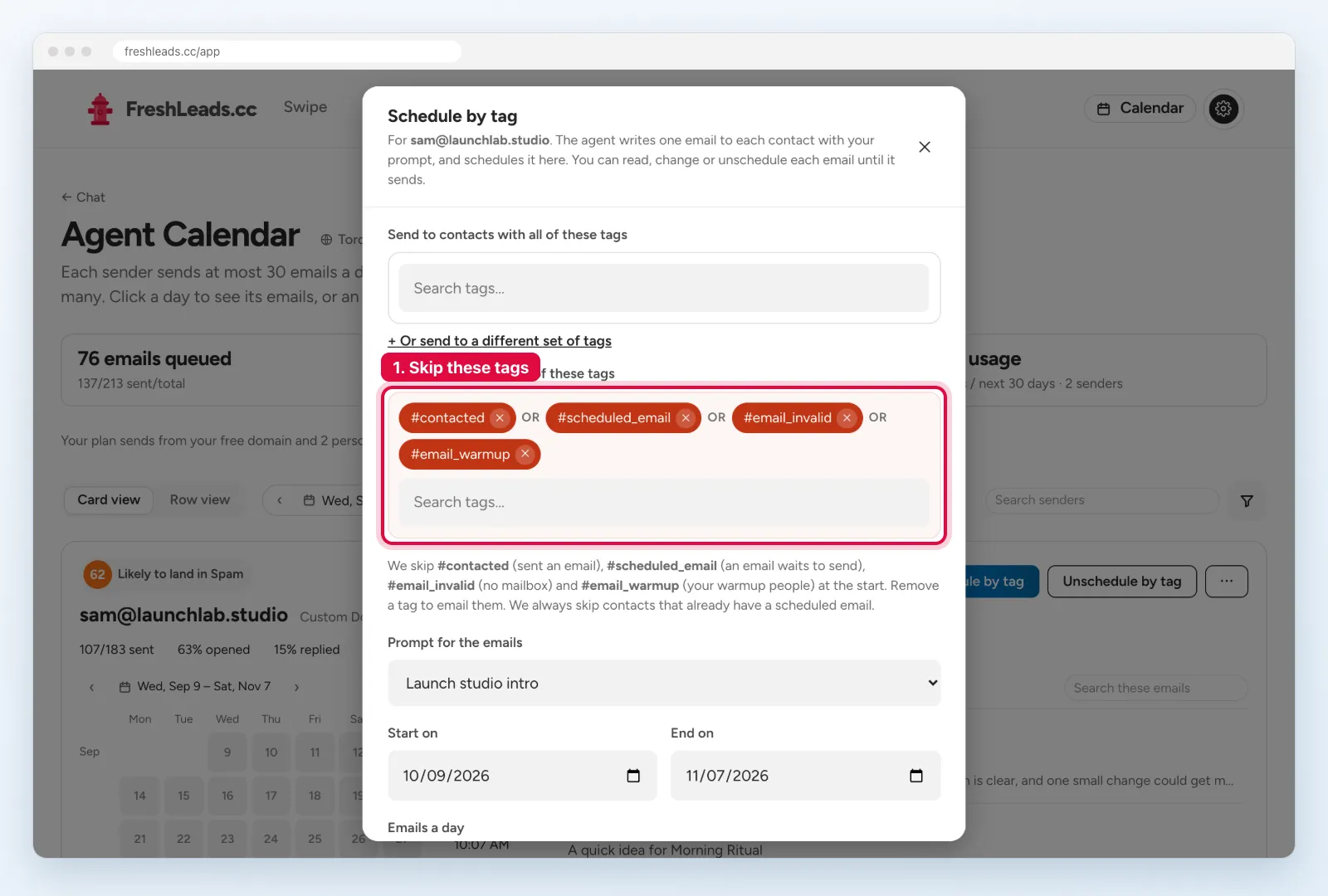
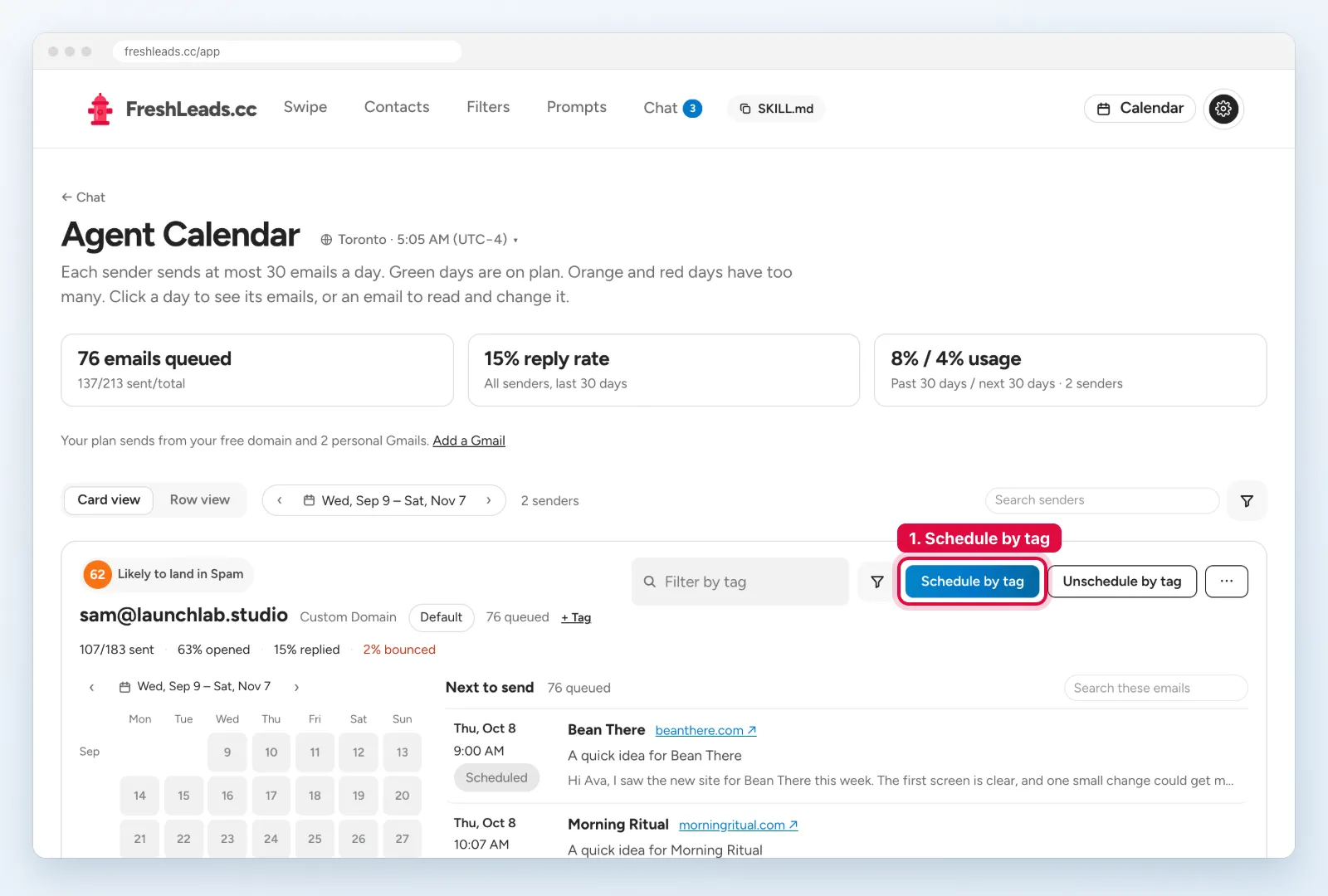
You can read, change, or remove each email until it sends. Green days are on plan. Orange and red days have too many emails. Each sender card also shows a health score. A low score means that more emails can go to spam, so send fewer emails from that sender.
Sales
A reply is the start of a sale. Answer fast, book a call, and track each deal with tags until it is paid.
4.1Answer the replies
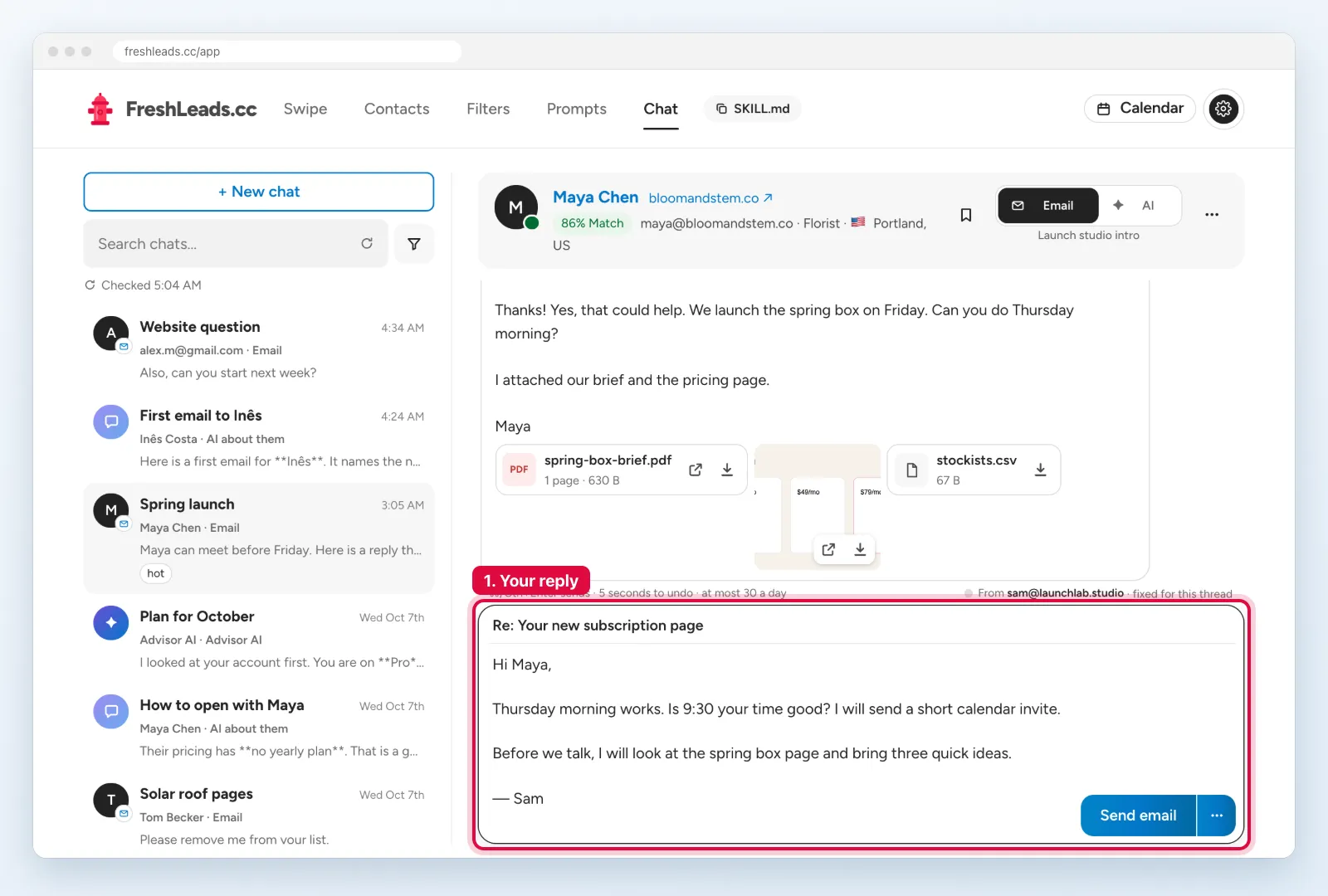
Replies come to the Chat page. A fast answer gives you a much better chance of a sale. Answer on the same day.
- Open Chat. A number on the tab shows new replies.
- Click a chat to read the reply.
- Click Write draft. The AI writes an answer from your reply prompt.
- Change the draft so that it sounds like you.
- Click Send email.
4.2Close the deal
A reply is not a sale yet. Your next job is to get a short call or a clear “yes”.
Move the lead forward
- Ask for one small next step, for example a tasting lunch at their office.
- Give two times for the call. Send a calendar invite when the lead agrees.
- Before the call, open the AI side of the chat. Ask: “What does this business need?” The AI reads their website for you.
- After the call, send a short summary and a clear price on the same day.
- If there is no answer, send one short follow-up after 3 to 4 days.
Your goal: a weekly team lunch order.
Keep track of each deal
Use tags for the stage of each deal. Then you can see your pipeline in Contacts with one tag filter.
| Tag | Meaning | Next step |
|---|---|---|
| replied | The lead answered | Ask for a call |
| hot | The lead wants to talk | Book the call |
| proposal | You sent a price | Follow up in 3 days |
| won | The lead paid | Start the work and ask for a referral |
| lost | The lead said no | Ask again in 3 months |
Write what you agreed in the Note box on the lead page. Only you can see the note.
Your 20-minute daily plan
Do these tasks each day. Small daily work gives better results than one big day each week.
Five rules for good results
- Send a maximum of 30 emails each day from each sender. Start with fewer on a new sender.
- Verify an email address before the first email.
- Write short emails with one question and no links.
- Do not use sales words such as “free”, “guarantee” or “limited offer” in the first email.
- Answer each reply on the same day.
Start now
Make your first filter today. Then claim your free domain on the same day, because a new sender needs some days to get ready. While it gets ready, keep your best leads and sort them with tags.